> ## Documentation Index
> Fetch the complete documentation index at: https://docs.brew.new/llms.txt
> Use this file to discover all available pages before exploring further.
# Brand Identity
> Manage your brand's identity, assets, links, email design system, and image style, all in one place.
The Brand tab is where every detail of your brand lives. It holds the inputs Brew uses to make every email feel like yours. Open it from **Brand** in the sidebar.
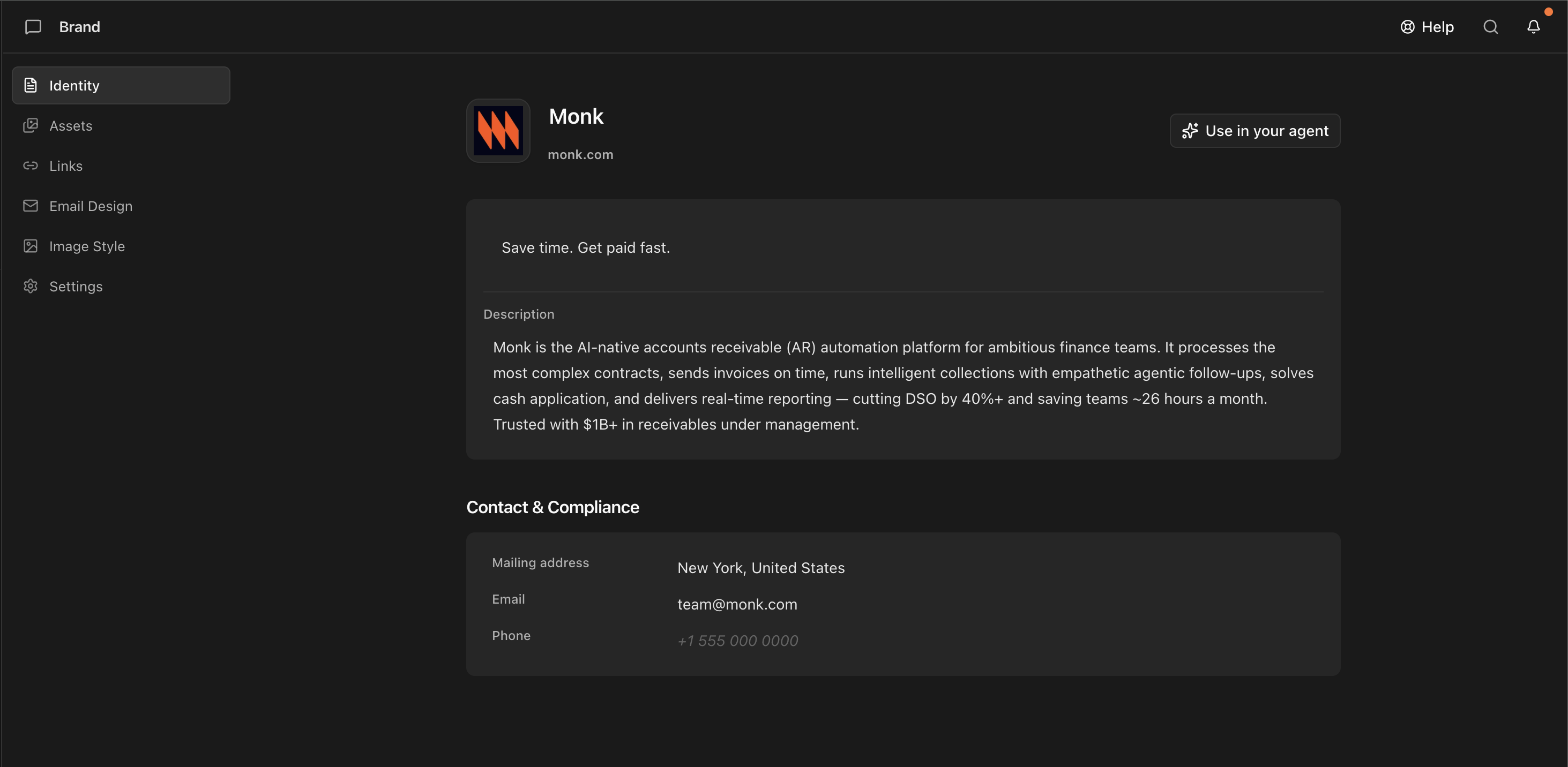 The tab has six sub-pages:
| Sub-page | What you control |
| ---------------- | ----------------------------------------------------------------------------- |
| **Identity** | Brand name, tagline, description, contact and compliance details |
| **Assets** | The logo system and the image library Brew pulls from |
| **Links** | Footer icon style, social profiles, content sources |
| **Email Design** | Your brand's `email-design.md`: colors, type, layout, voice, signature moves |
| **Image Style** | Your brand's `image-style.md`: the visual spec for any imagery Brew generates |
| **Settings** | Deleting the brand |
Every value here flows into every email Brew generates. You don't set them again per email.
## Identity
Who the brand is, in the words Brew reuses everywhere.
* **Brand name, domain, and tagline** appear in headers and footers.
* **Description.** The short story of what you do and why it matters. Brew references it for openings and CTAs.
* **Contact and compliance.** Your mailing address, contact email, and phone number. The mailing address appears in the footer of every marketing email (required by [CAN-SPAM](https://www.ftc.gov/business-guidance/resources/can-spam-act-compliance-guide-business)).
Edit the description if Brew's first-pass copy doesn't sound like you. Small changes here produce big changes in tone.
## Assets
The visual files Brew pulls from, in two sections you can add to anytime.
* **Logo system.** Your brand icon and full logo, pinned above the image library and always accessible to Brew. Click **Upload** to replace either or add new versions.
* **Image library.** Hero shots, product screenshots, and photography Brew can use directly in emails. **Upload** adds more; extraction seeds the library from your site, but it grows however you feed it.
Use the semantic search to find images by visual meaning, page context, alt text, or asset role. Filter by aspect ratio or asset type, or use the quick-filter tags (hero banner, product UI, dark background, email header). Leave the search empty to browse your full image library.
## Links
The URLs that appear in your footer or get used as source material.
* **Footer icon style.** How social icons render in your emails: **Colored**, **Monochrome**, or **Outline**.
* **Social profiles.** Click **Add profile** and pick from the platform list (LinkedIn, X, Instagram, Facebook, GitHub, TikTok, Discord, and more), then paste the URL. Brew renders each as an icon in the footer. Platforms you've already added are greyed out in the picker.
* **Content sources.** The pages Brew reads when generating email copy and strategy: blog posts, product pages, customer stories, launch pages. Click **Add source**, pick a category (Blog, Docs, Customers, Changelog, Press, Content), and paste the URL. Edit or delete any source to stop Brew pulling from it.
## Email Design
Renders your brand's `email-design.md`: brand essence, signature moves, the color system, typography, and your voice and standing instructions (custom footer copy, formatting rules), written as one document Brew reads at generation time. Edit any line and every email generated afterward inherits it.
Everything about the file, including how to set it from an email you already like, is on [Set a design baseline](/brand/design-baseline).
## Image Style
Renders your brand's `image-style.md`: the visual spec for any imagery Brew generates, covering palette, subjects, composition, lighting, and a list of what to avoid. Separate from your uploaded **Assets**.
See [Set a design baseline](/brand/design-baseline) for what the file covers and how to shape it.
## Settings
For now, Settings holds one action: deleting the brand. Rebuilding after a rebrand (delete the brand, then add it again) is covered in [Set a design baseline](/brand/design-baseline#keep-it-current).
Deleting a brand is permanent. It removes the brand workspace and its related data. Export or copy anything you want to keep before deleting.
## Related
How extraction works, and how to upload an existing brand guide instead of starting from your site alone.
Make an email you like the default layout, globally or per email type.
Customize the page subscribers see when they unsubscribe, and review reason capture stats.
Display your logo or photo in recipients' inboxes via BIMI, Apple Branded Mail, and per-client setup.
Run more than one brand in the same Brew account.
## Need Help?
Our team is ready to support you at every step of your journey with Brew. Choose the option that works best for you:
Type in the "Ask any question" search bar at the top left to instantly find relevant documentation pages.
Click "Open in ChatGPT" at the top right of any page to analyze documentation with ChatGPT or Claude for deeper insights.
Book time with our founders for personalized guidance on strategy, best practices, or complex implementation questions.
Need immediate assistance? Reach us at **+1-(332)-203-2145** for urgent issues or time-sensitive questions.
Our preferred support channel. You'll receive an invite after signup for direct founder support and fast responses.
Contact us at **[support@brew.new](mailto:support@brew.new)** for detailed inquiries or if you prefer not to use Slack.
The tab has six sub-pages:
| Sub-page | What you control |
| ---------------- | ----------------------------------------------------------------------------- |
| **Identity** | Brand name, tagline, description, contact and compliance details |
| **Assets** | The logo system and the image library Brew pulls from |
| **Links** | Footer icon style, social profiles, content sources |
| **Email Design** | Your brand's `email-design.md`: colors, type, layout, voice, signature moves |
| **Image Style** | Your brand's `image-style.md`: the visual spec for any imagery Brew generates |
| **Settings** | Deleting the brand |
Every value here flows into every email Brew generates. You don't set them again per email.
## Identity
Who the brand is, in the words Brew reuses everywhere.
* **Brand name, domain, and tagline** appear in headers and footers.
* **Description.** The short story of what you do and why it matters. Brew references it for openings and CTAs.
* **Contact and compliance.** Your mailing address, contact email, and phone number. The mailing address appears in the footer of every marketing email (required by [CAN-SPAM](https://www.ftc.gov/business-guidance/resources/can-spam-act-compliance-guide-business)).
Edit the description if Brew's first-pass copy doesn't sound like you. Small changes here produce big changes in tone.
## Assets
The visual files Brew pulls from, in two sections you can add to anytime.
* **Logo system.** Your brand icon and full logo, pinned above the image library and always accessible to Brew. Click **Upload** to replace either or add new versions.
* **Image library.** Hero shots, product screenshots, and photography Brew can use directly in emails. **Upload** adds more; extraction seeds the library from your site, but it grows however you feed it.
Use the semantic search to find images by visual meaning, page context, alt text, or asset role. Filter by aspect ratio or asset type, or use the quick-filter tags (hero banner, product UI, dark background, email header). Leave the search empty to browse your full image library.
## Links
The URLs that appear in your footer or get used as source material.
* **Footer icon style.** How social icons render in your emails: **Colored**, **Monochrome**, or **Outline**.
* **Social profiles.** Click **Add profile** and pick from the platform list (LinkedIn, X, Instagram, Facebook, GitHub, TikTok, Discord, and more), then paste the URL. Brew renders each as an icon in the footer. Platforms you've already added are greyed out in the picker.
* **Content sources.** The pages Brew reads when generating email copy and strategy: blog posts, product pages, customer stories, launch pages. Click **Add source**, pick a category (Blog, Docs, Customers, Changelog, Press, Content), and paste the URL. Edit or delete any source to stop Brew pulling from it.
## Email Design
Renders your brand's `email-design.md`: brand essence, signature moves, the color system, typography, and your voice and standing instructions (custom footer copy, formatting rules), written as one document Brew reads at generation time. Edit any line and every email generated afterward inherits it.
Everything about the file, including how to set it from an email you already like, is on [Set a design baseline](/brand/design-baseline).
## Image Style
Renders your brand's `image-style.md`: the visual spec for any imagery Brew generates, covering palette, subjects, composition, lighting, and a list of what to avoid. Separate from your uploaded **Assets**.
See [Set a design baseline](/brand/design-baseline) for what the file covers and how to shape it.
## Settings
For now, Settings holds one action: deleting the brand. Rebuilding after a rebrand (delete the brand, then add it again) is covered in [Set a design baseline](/brand/design-baseline#keep-it-current).
Deleting a brand is permanent. It removes the brand workspace and its related data. Export or copy anything you want to keep before deleting.
## Related
How extraction works, and how to upload an existing brand guide instead of starting from your site alone.
Make an email you like the default layout, globally or per email type.
Customize the page subscribers see when they unsubscribe, and review reason capture stats.
Display your logo or photo in recipients' inboxes via BIMI, Apple Branded Mail, and per-client setup.
Run more than one brand in the same Brew account.
## Need Help?
Our team is ready to support you at every step of your journey with Brew. Choose the option that works best for you:
Type in the "Ask any question" search bar at the top left to instantly find relevant documentation pages.
Click "Open in ChatGPT" at the top right of any page to analyze documentation with ChatGPT or Claude for deeper insights.
Book time with our founders for personalized guidance on strategy, best practices, or complex implementation questions.
Need immediate assistance? Reach us at **+1-(332)-203-2145** for urgent issues or time-sensitive questions.
Our preferred support channel. You'll receive an invite after signup for direct founder support and fast responses.
Contact us at **[support@brew.new](mailto:support@brew.new)** for detailed inquiries or if you prefer not to use Slack.