> ## Documentation Index
> Fetch the complete documentation index at: https://docs.brew.new/llms.txt
> Use this file to discover all available pages before exploring further.
# Inbox Icons
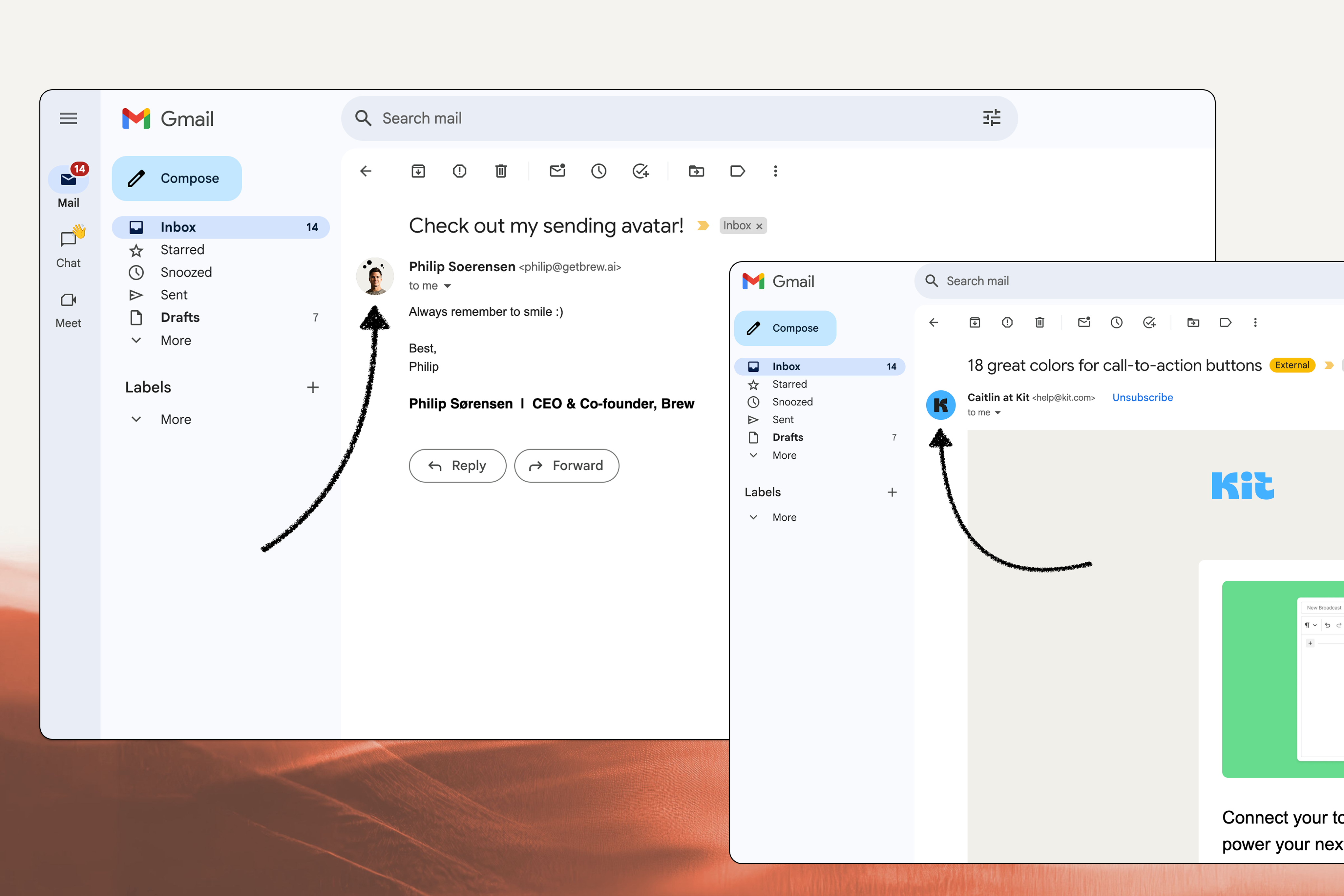
> Display your brand logo or personal photo in recipients' inboxes to improve open rates and brand recall.
Adding your brand logo or personal photo to emails increases recognition, trust, and open rates. [Research](https://www.businesswire.com/news/home/20210720005361/en/Red-Sift-and-Entrust-Survey-Showing-a-Logo-Positively-Affects-Consumer-Interaction-With-Emails-Open-Rates-Buying-Behavior-Brand-Recall-and-Confidence) shows visual identifiers in the inbox can lift open rates by up to 21%.
 ## Why Inbox Icons Matter
Visual identifiers help your emails stand out in crowded inboxes, recognition kicks in before recipients open the message.
Recognizable logos can lift open rates by up to 21%.
A familiar logo or face reduces phishing concerns and builds confidence in your brand.
A unified visual identity across email clients reinforces a polished brand experience.
## Two Ways to Set This Up
Add icons to individual email providers via your account profile. Supports both company logos and personal photos.
Pros:
* Personal photos and company logos
* No additional cost beyond the basic accounts
* Simple, no technical skill required
Cons:
* Set up separately for each provider
* Limited to supported clients
* No verification badge
1. [Sign in](https://myaccount.google.com/personal-info) to the Google account associated with your sending address
2. Click your profile icon in the top right
3. Click "Manage your Google Account"
4. Open **Personal info** in the left menu
5. Under **Profile**, click your profile picture
6. Upload your logo or photo
7. Set as profile photo
Gmail displays icons in the mobile app (including push notifications) and inside opened emails on desktop, but not in the inbox list view on desktop.
[Apple Branded Mail](https://support.apple.com/guide/apple-business-connect/prepare-to-use-branded-mail-abcb761b19d2/web) lets you display your logo as an avatar in Apple Mail inboxes on supported devices (iOS, iPadOS, macOS).
Apple Branded Mail only works in Apple Mail on recent iOS, iPadOS, and macOS versions. It won't show in other clients or older Apple Mail versions.
* Create an Apple Business Connect account ([sign up](https://business.apple.com/))
* Make sure your [DNS records are set up](/get-started/verify-your-sending-domain). Apple Branded Mail requires DMARC, which you've already configured if you completed Brew onboarding
* Have a company identification number for Apple to verify your business
* You may need to update your DMARC policy to `p=quarantine;` or `p=reject;` and `pct=100`
* Example: `v=DMARC1; p=quarantine; pct=100; rua=mailto:dmarcreports@example.com`
Test your deliverability before tightening DMARC to make sure existing sends still authenticate cleanly.
* Enter your company address, name, and required details in Business Connect
* Select **Branded Mail** in the sidebar
* Add your brand name and website
* Apple requires a logo at least 1024 × 1024 px in `.png`, `.heif`, or `.jpeg`
* Specify the domains or addresses where your logo should appear
* You can register your logo for the root domain or a subdomain, if you don't set a specific subdomain logo, the root one is used
* See [domain verification](/get-started/verify-your-sending-domain) for guidance on choosing root vs subdomain
* Provide your company identification number (e.g., Federal Taxpayer ID in the US)
* Apple will ask you to add a DNS record to verify domain ownership
* Review takes up to seven business days
* Once approved, your logo appears in Apple Mail for supported recipients
Apple Branded Mail works only with commercial domains (not gmail.com, etc.) and requires the DNS records you set up in [domain verification](/get-started/verify-your-sending-domain).
Best results come from setting up Apple Branded Mail, BIMI, and per-client profiles together.
1. [Sign in](https://account.microsoft.com/profile/) to your Outlook account
2. Click your profile icon in the top right
3. Select **My profile** or **View account**
4. Click **Edit profile**
5. Upload your logo or photo
6. Save
Outlook primarily displays icons in the mobile app and inside opened emails on desktop.
1. [Sign in](https://login.yahoo.com/account/personalinfo) to your Yahoo account
2. Click your profile icon
3. Select **Account info**
4. Open **Personal info**
5. Click your profile image
6. Upload your logo or photo
7. Save
Yahoo Mail shows icons in both the message list and message view.
Gravatar is used by clients like Thunderbird, Airmail, and Postbox.
1. Go to [Gravatar.com](https://gravatar.com/)
2. Create an account or sign in
3. Add your brand logo or photo
4. Verify the email addresses you send from
5. Your icon now displays in clients that use Gravatar
A standardized way to display your company logo across multiple clients with one setup. More technical setup, sometimes a certificate cost.
Pros:
* Works across multiple clients with one setup
* Provides verification and trust indicators
* Consistent brand presentation
Cons:
* Company logos only (no personal photos)
* Requires DNS configuration
* Often requires a certificate ($800-$1,500/year)
[BIMI](https://bimigroup.org/) (Brand Indicators for Message Identification) is an email standard that lets your logo appear automatically in compatible inbox clients. It works on top of [the DNS records you've already configured with Brew](/get-started/verify-your-sending-domain).
**What BIMI does**
* Displays your logo in supporting clients
* Works across multiple platforms with a single setup
* Adds a verification layer that builds recipient trust
* Some providers add a verification checkmark next to your logo
**Supported clients**
* Gmail and Google Workspace
* Apple Mail (macOS Ventura 13+, iOS 16+, iPadOS 16+)
* Yahoo Mail
* Fastmail, AOL, Netscape, Pobox
**Not supported by:** Outlook and other Microsoft clients
1. **Authentication check.** When you send an email, the recipient's provider verifies your DMARC, DKIM, and SPF records (already set up via [domain verification](/get-started/verify-your-sending-domain))
2. **Logo retrieval.** If authentication passes, the provider reads your BIMI record and displays your logo
3. **Trust verification.** With a VMC, your logo's ownership is verified, adding extra trust signals
**Verified Mark Certificate (VMC):**
* Requires a registered trademark for your logo
* \~\$1,500/year
* Works with all BIMI-supporting clients
* Adds a blue verification checkmark in Gmail
**Common Mark Certificate (CMC):**
* For businesses without a trademark
* Requires proof you've used your logo consistently for at least one year
* \~\$800/year
* Currently only works with Gmail
* No verification checkmark
**No certificate:**
* Works only with Yahoo Mail
* No verification checkmark
* Free, but limited coverage
If most of your audience uses Gmail, a CMC may be enough. For broader coverage including Apple Mail, get a VMC.
If you completed [domain verification](/get-started/verify-your-sending-domain), you've already set up the DMARC foundation BIMI needs. To finish:
**1. Authenticate at enforcement**
* DMARC policy must be `p=quarantine` or `p=reject` (not `p=none`)
* `pct=100` (anything less is not accepted)
* Apply to both domain and subdomains (`sp=quarantine` or `sp=reject`)
**2. Prepare your logo**
* Square SVG in Tiny PS format
* Max 32KB
* Hosted with HTTPS
* Validate with the [BIMI Generator](https://bimigroup.org/bimi-generator/)
**3. Obtain a certificate (recommended)**
* Buy a VMC or CMC from Entrust or DigiCert
* VMC requires a registered trademark
* CMC requires demonstrated logo use over time
* Self-asserted BIMI (no certificate) has limited support
**4. Add the BIMI DNS record**
```
Name: default._bimi
Type: TXT
Value: v=BIMI1; l=https://yourdomain.com/logo.svg; a=https://yourdomain.com/certificate.pem;
```
* `l=` points to your hosted logo (HTTPS required)
* `a=` points to your certificate (include for VMC/CMC, optional otherwise)
**5. Verify**
Use the [BIMI Generator](https://bimigroup.org/bimi-generator/) to validate everything is configured correctly.
For complete details, see the [official BIMI implementation guide](https://bimigroup.org/implementation-guide/).
DNS changes can take 24-48 hours to propagate. Providers may take additional time to display your logo.
BIMI requirements evolve. Each provider sets its own criteria. Check the [BIMI Group website](https://bimigroup.org/) for current standards.
## Need help?
Our team is ready to support you at every step of your journey with Brew. Choose the option that works best for you:
Type in the "Ask any question" search bar at the top left to instantly find relevant documentation pages.
Click "Open in ChatGPT" at the top right of any page to analyze documentation with ChatGPT or Claude for deeper insights.
Book time with our founders for personalized guidance on strategy, best practices, or complex implementation questions.
Need immediate assistance? Reach us at **+1-(332)-203-2145** for urgent issues or time-sensitive questions.
Our preferred support channel. You'll receive an invite after signup for direct founder support and fast responses.
Contact us at **[support@brew.new](mailto:support@brew.new)** for detailed inquiries or if you prefer not to use Slack.
## Why Inbox Icons Matter
Visual identifiers help your emails stand out in crowded inboxes, recognition kicks in before recipients open the message.
Recognizable logos can lift open rates by up to 21%.
A familiar logo or face reduces phishing concerns and builds confidence in your brand.
A unified visual identity across email clients reinforces a polished brand experience.
## Two Ways to Set This Up
Add icons to individual email providers via your account profile. Supports both company logos and personal photos.
Pros:
* Personal photos and company logos
* No additional cost beyond the basic accounts
* Simple, no technical skill required
Cons:
* Set up separately for each provider
* Limited to supported clients
* No verification badge
1. [Sign in](https://myaccount.google.com/personal-info) to the Google account associated with your sending address
2. Click your profile icon in the top right
3. Click "Manage your Google Account"
4. Open **Personal info** in the left menu
5. Under **Profile**, click your profile picture
6. Upload your logo or photo
7. Set as profile photo
Gmail displays icons in the mobile app (including push notifications) and inside opened emails on desktop, but not in the inbox list view on desktop.
[Apple Branded Mail](https://support.apple.com/guide/apple-business-connect/prepare-to-use-branded-mail-abcb761b19d2/web) lets you display your logo as an avatar in Apple Mail inboxes on supported devices (iOS, iPadOS, macOS).
Apple Branded Mail only works in Apple Mail on recent iOS, iPadOS, and macOS versions. It won't show in other clients or older Apple Mail versions.
* Create an Apple Business Connect account ([sign up](https://business.apple.com/))
* Make sure your [DNS records are set up](/get-started/verify-your-sending-domain). Apple Branded Mail requires DMARC, which you've already configured if you completed Brew onboarding
* Have a company identification number for Apple to verify your business
* You may need to update your DMARC policy to `p=quarantine;` or `p=reject;` and `pct=100`
* Example: `v=DMARC1; p=quarantine; pct=100; rua=mailto:dmarcreports@example.com`
Test your deliverability before tightening DMARC to make sure existing sends still authenticate cleanly.
* Enter your company address, name, and required details in Business Connect
* Select **Branded Mail** in the sidebar
* Add your brand name and website
* Apple requires a logo at least 1024 × 1024 px in `.png`, `.heif`, or `.jpeg`
* Specify the domains or addresses where your logo should appear
* You can register your logo for the root domain or a subdomain, if you don't set a specific subdomain logo, the root one is used
* See [domain verification](/get-started/verify-your-sending-domain) for guidance on choosing root vs subdomain
* Provide your company identification number (e.g., Federal Taxpayer ID in the US)
* Apple will ask you to add a DNS record to verify domain ownership
* Review takes up to seven business days
* Once approved, your logo appears in Apple Mail for supported recipients
Apple Branded Mail works only with commercial domains (not gmail.com, etc.) and requires the DNS records you set up in [domain verification](/get-started/verify-your-sending-domain).
Best results come from setting up Apple Branded Mail, BIMI, and per-client profiles together.
1. [Sign in](https://account.microsoft.com/profile/) to your Outlook account
2. Click your profile icon in the top right
3. Select **My profile** or **View account**
4. Click **Edit profile**
5. Upload your logo or photo
6. Save
Outlook primarily displays icons in the mobile app and inside opened emails on desktop.
1. [Sign in](https://login.yahoo.com/account/personalinfo) to your Yahoo account
2. Click your profile icon
3. Select **Account info**
4. Open **Personal info**
5. Click your profile image
6. Upload your logo or photo
7. Save
Yahoo Mail shows icons in both the message list and message view.
Gravatar is used by clients like Thunderbird, Airmail, and Postbox.
1. Go to [Gravatar.com](https://gravatar.com/)
2. Create an account or sign in
3. Add your brand logo or photo
4. Verify the email addresses you send from
5. Your icon now displays in clients that use Gravatar
A standardized way to display your company logo across multiple clients with one setup. More technical setup, sometimes a certificate cost.
Pros:
* Works across multiple clients with one setup
* Provides verification and trust indicators
* Consistent brand presentation
Cons:
* Company logos only (no personal photos)
* Requires DNS configuration
* Often requires a certificate ($800-$1,500/year)
[BIMI](https://bimigroup.org/) (Brand Indicators for Message Identification) is an email standard that lets your logo appear automatically in compatible inbox clients. It works on top of [the DNS records you've already configured with Brew](/get-started/verify-your-sending-domain).
**What BIMI does**
* Displays your logo in supporting clients
* Works across multiple platforms with a single setup
* Adds a verification layer that builds recipient trust
* Some providers add a verification checkmark next to your logo
**Supported clients**
* Gmail and Google Workspace
* Apple Mail (macOS Ventura 13+, iOS 16+, iPadOS 16+)
* Yahoo Mail
* Fastmail, AOL, Netscape, Pobox
**Not supported by:** Outlook and other Microsoft clients
1. **Authentication check.** When you send an email, the recipient's provider verifies your DMARC, DKIM, and SPF records (already set up via [domain verification](/get-started/verify-your-sending-domain))
2. **Logo retrieval.** If authentication passes, the provider reads your BIMI record and displays your logo
3. **Trust verification.** With a VMC, your logo's ownership is verified, adding extra trust signals
**Verified Mark Certificate (VMC):**
* Requires a registered trademark for your logo
* \~\$1,500/year
* Works with all BIMI-supporting clients
* Adds a blue verification checkmark in Gmail
**Common Mark Certificate (CMC):**
* For businesses without a trademark
* Requires proof you've used your logo consistently for at least one year
* \~\$800/year
* Currently only works with Gmail
* No verification checkmark
**No certificate:**
* Works only with Yahoo Mail
* No verification checkmark
* Free, but limited coverage
If most of your audience uses Gmail, a CMC may be enough. For broader coverage including Apple Mail, get a VMC.
If you completed [domain verification](/get-started/verify-your-sending-domain), you've already set up the DMARC foundation BIMI needs. To finish:
**1. Authenticate at enforcement**
* DMARC policy must be `p=quarantine` or `p=reject` (not `p=none`)
* `pct=100` (anything less is not accepted)
* Apply to both domain and subdomains (`sp=quarantine` or `sp=reject`)
**2. Prepare your logo**
* Square SVG in Tiny PS format
* Max 32KB
* Hosted with HTTPS
* Validate with the [BIMI Generator](https://bimigroup.org/bimi-generator/)
**3. Obtain a certificate (recommended)**
* Buy a VMC or CMC from Entrust or DigiCert
* VMC requires a registered trademark
* CMC requires demonstrated logo use over time
* Self-asserted BIMI (no certificate) has limited support
**4. Add the BIMI DNS record**
```
Name: default._bimi
Type: TXT
Value: v=BIMI1; l=https://yourdomain.com/logo.svg; a=https://yourdomain.com/certificate.pem;
```
* `l=` points to your hosted logo (HTTPS required)
* `a=` points to your certificate (include for VMC/CMC, optional otherwise)
**5. Verify**
Use the [BIMI Generator](https://bimigroup.org/bimi-generator/) to validate everything is configured correctly.
For complete details, see the [official BIMI implementation guide](https://bimigroup.org/implementation-guide/).
DNS changes can take 24-48 hours to propagate. Providers may take additional time to display your logo.
BIMI requirements evolve. Each provider sets its own criteria. Check the [BIMI Group website](https://bimigroup.org/) for current standards.
## Need help?
Our team is ready to support you at every step of your journey with Brew. Choose the option that works best for you:
Type in the "Ask any question" search bar at the top left to instantly find relevant documentation pages.
Click "Open in ChatGPT" at the top right of any page to analyze documentation with ChatGPT or Claude for deeper insights.
Book time with our founders for personalized guidance on strategy, best practices, or complex implementation questions.
Need immediate assistance? Reach us at **+1-(332)-203-2145** for urgent issues or time-sensitive questions.
Our preferred support channel. You'll receive an invite after signup for direct founder support and fast responses.
Contact us at **[support@brew.new](mailto:support@brew.new)** for detailed inquiries or if you prefer not to use Slack.