> ## Documentation Index
> Fetch the complete documentation index at: https://docs.brew.new/llms.txt
> Use this file to discover all available pages before exploring further.
# Prompt guide
> How to write prompts that produce great emails on the first try.
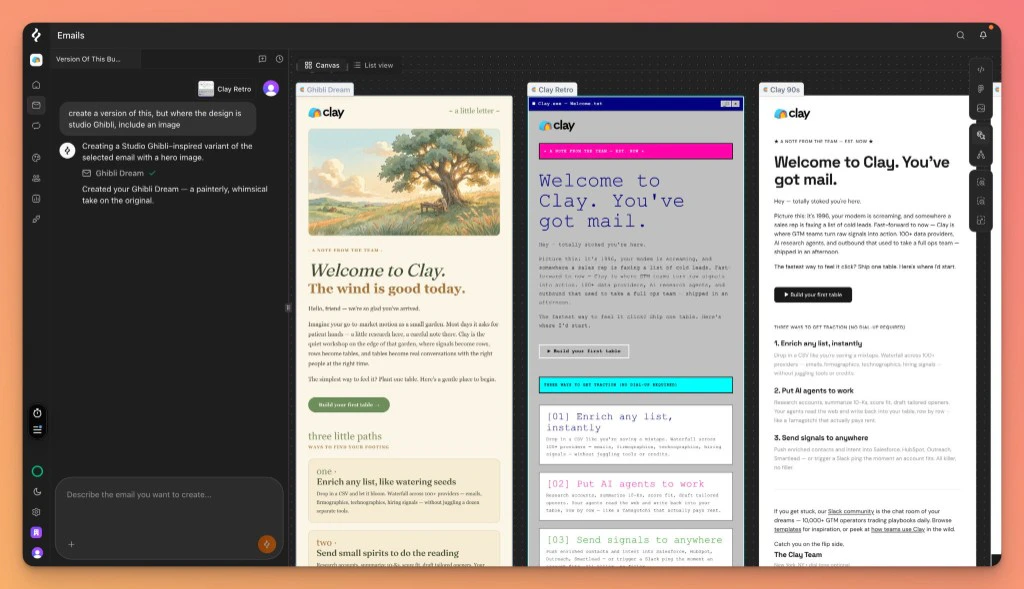 Brew generates emails from natural-language prompts. The more specific you are about the goal, audience, and tone, the closer the first generation will be to what you want.
## Prompt patterns that work
* **Lead with the goal.** *"Announce our new analytics dashboard"* is better than *"Write a marketing email."*
* **Name the audience.** *"For new SaaS trial users who haven't booked a demo yet"* gives Brew the context to pick the right tone.
* **Specify length and structure.** *"3-email welcome flow"* or *"single email with one CTA and a testimonial"* keeps Brew focused.
* **Reference brand assets.** Mention domains (*"use the brand from acme.com"*), Figma URLs, or attached images directly in the prompt.
* **Iterate after generating.** Don't try to get everything in one prompt. Generate, review, and tell Brew what to change.
**Vague:** *"Create a welcome email"*
**Better:** *"Create a 3-email welcome flow for new SaaS trial users. First email introduces the product, second shares a quick-start guide, third nudges them to book a demo. Friendly, professional tone."*
## Generate multiple emails at once
A single prompt can produce several emails. They appear side-by-side on the canvas.
* *"Create three subject-line variations for this announcement."*
* *"Generate two versions of this welcome email, one playful, one professional."*
* *"Build a 5-email welcome series and lay them out on the canvas."*
This is one of Brew's most useful patterns, explore options without losing the original.
## @-mention existing work
In chat, type `@` to reference an existing email or automation. Brew uses the mentioned item as context for the new request.
* *"Match the tone of @welcome-email-v2 for this onboarding flow."*
* *"Build an automation that fires after @abandoned-cart but for high-value customers."*
A typeahead suggests recent emails and automations as you type.
## Attach files and links
Attach files directly to a prompt to give Brew exact assets to work with.
* **Images.** Drag in product photos, hero shots, or screenshots. Brew uses them in the email or as style references.
* **Figma URLs.** Paste a Figma frame URL with `node-id`. Brew converts the design to a responsive email.
* **HTML.** Paste full HTML to remix an existing email into your brand.
**Pixel-faithful recreation.** Upload a screenshot of an email you like and ask Brew to recreate the structure with your brand assets.
## Brew's email superpowers
These are the tools Brew has access to behind the scenes. You don't have to call them directly. Brew picks the right one based on your prompt, but knowing they exist helps you ask for what you want.
### Brand and design
**What it does:** Extracts brand colors, fonts, logos, and design details from any domain.
**When Brew uses it:** When you mention a domain in your prompt or ask Brew to "use the brand from X."
**When to call it directly:** When you want Brew to pull a specific brand's assets (e.g. a partner co-marketing email).
*"Use the brand from acme.com for this email."*
**What it does:** Returns production-ready email patterns for common layouts (product grids, pricing tables, hero sections).
**When Brew uses it:** When your request matches a known pattern.
*"Use a 3-column grid layout."*
**What it does:** Pulls inspirational examples from Brew's example store to guide structure and tone.
**When Brew uses it:** When you describe a vibe or style rather than an exact layout.
*"Make it feel like a luxury fashion promotional email."*
**What it does:** Converts Figma designs into responsive emails that work in every inbox.
**When Brew uses it:** When you paste a Figma URL with `node-id`.
*"Convert this Figma design: [https://www.figma.com/file/...?node-id=](https://www.figma.com/file/...?node-id=)..."*
**What it does:** Returns curated social and app-store icons at the right sizes, no broken or mismatched icons.
*"Add social media icons in black to the footer."*
### Images
**What it does:** Generates new images from natural-language descriptions. Returns hosted URLs ready to embed.
**When Brew uses it:** When you describe an image but don't attach one.
*"Create a hero image of a laptop on a wooden desk in warm morning light."*
Use camera, lighting, composition, and material details. Avoid abstract or fantastical descriptions.
**What it does:** Produces new images that match the visual style of a reference, so the imagery in an email stays cohesive.
*"Create a product image that matches the style of our OG image, product on linen, warm soft light."*
**What it does:** Edits an existing image, color tweaks, retouches, small composition changes.
*"Make the hero image warmer and more contrasty."*
**What it does:** Removes backgrounds and returns transparent PNGs.
*"Remove the background from the product image so I can place it on a gradient."*
**What it does:** Animates static images into GIFs.
*"Animate the hero image."*
Static images are the default. Keep motion subtle and limited to 1-2 GIFs per email, focused on hero or product areas.
**What it does:** Captures a website or email screenshot for visual analysis. Brew uses the image only for analysis. It doesn't embed the screenshot directly.
*"Take a look at this email and tell me what to improve."* (with image attached)
### Email creation
**What it does:** Composes a complete email from a prompt, components, or examples, fully responsive and production-ready.
*"Create a welcome email for Acme with our logo and a hero shot of the product."*
**What it does:** Applies precise edits to an existing email while preserving image URLs and responsive structure.
*"Change the CTA text to 'Get Early Access' and make the button our brand color. Replace the hero with the new image."*
For a full rebrand, list every replacement asset so Brew does a comprehensive swap.
### Research
**What it does:** Looks up live information for accurate copy.
*"Look up the latest Stripe pricing changes for 2025."*
## Need Help?
Our team is ready to support you at every step of your journey with Brew. Choose the option that works best for you:
Type in the "Ask any question" search bar at the top left to instantly find relevant documentation pages.
Click "Open in ChatGPT" at the top right of any page to analyze documentation with ChatGPT or Claude for deeper insights.
Book time with our founders for personalized guidance on strategy, best practices, or complex implementation questions.
Need immediate assistance? Reach us at **+1-(332)-203-2145** for urgent issues or time-sensitive questions.
Our preferred support channel. You'll receive an invite after signup for direct founder support and fast responses.
Contact us at **[support@brew.new](mailto:support@brew.new)** for detailed inquiries or if you prefer not to use Slack.
Brew generates emails from natural-language prompts. The more specific you are about the goal, audience, and tone, the closer the first generation will be to what you want.
## Prompt patterns that work
* **Lead with the goal.** *"Announce our new analytics dashboard"* is better than *"Write a marketing email."*
* **Name the audience.** *"For new SaaS trial users who haven't booked a demo yet"* gives Brew the context to pick the right tone.
* **Specify length and structure.** *"3-email welcome flow"* or *"single email with one CTA and a testimonial"* keeps Brew focused.
* **Reference brand assets.** Mention domains (*"use the brand from acme.com"*), Figma URLs, or attached images directly in the prompt.
* **Iterate after generating.** Don't try to get everything in one prompt. Generate, review, and tell Brew what to change.
**Vague:** *"Create a welcome email"*
**Better:** *"Create a 3-email welcome flow for new SaaS trial users. First email introduces the product, second shares a quick-start guide, third nudges them to book a demo. Friendly, professional tone."*
## Generate multiple emails at once
A single prompt can produce several emails. They appear side-by-side on the canvas.
* *"Create three subject-line variations for this announcement."*
* *"Generate two versions of this welcome email, one playful, one professional."*
* *"Build a 5-email welcome series and lay them out on the canvas."*
This is one of Brew's most useful patterns, explore options without losing the original.
## @-mention existing work
In chat, type `@` to reference an existing email or automation. Brew uses the mentioned item as context for the new request.
* *"Match the tone of @welcome-email-v2 for this onboarding flow."*
* *"Build an automation that fires after @abandoned-cart but for high-value customers."*
A typeahead suggests recent emails and automations as you type.
## Attach files and links
Attach files directly to a prompt to give Brew exact assets to work with.
* **Images.** Drag in product photos, hero shots, or screenshots. Brew uses them in the email or as style references.
* **Figma URLs.** Paste a Figma frame URL with `node-id`. Brew converts the design to a responsive email.
* **HTML.** Paste full HTML to remix an existing email into your brand.
**Pixel-faithful recreation.** Upload a screenshot of an email you like and ask Brew to recreate the structure with your brand assets.
## Brew's email superpowers
These are the tools Brew has access to behind the scenes. You don't have to call them directly. Brew picks the right one based on your prompt, but knowing they exist helps you ask for what you want.
### Brand and design
**What it does:** Extracts brand colors, fonts, logos, and design details from any domain.
**When Brew uses it:** When you mention a domain in your prompt or ask Brew to "use the brand from X."
**When to call it directly:** When you want Brew to pull a specific brand's assets (e.g. a partner co-marketing email).
*"Use the brand from acme.com for this email."*
**What it does:** Returns production-ready email patterns for common layouts (product grids, pricing tables, hero sections).
**When Brew uses it:** When your request matches a known pattern.
*"Use a 3-column grid layout."*
**What it does:** Pulls inspirational examples from Brew's example store to guide structure and tone.
**When Brew uses it:** When you describe a vibe or style rather than an exact layout.
*"Make it feel like a luxury fashion promotional email."*
**What it does:** Converts Figma designs into responsive emails that work in every inbox.
**When Brew uses it:** When you paste a Figma URL with `node-id`.
*"Convert this Figma design: [https://www.figma.com/file/...?node-id=](https://www.figma.com/file/...?node-id=)..."*
**What it does:** Returns curated social and app-store icons at the right sizes, no broken or mismatched icons.
*"Add social media icons in black to the footer."*
### Images
**What it does:** Generates new images from natural-language descriptions. Returns hosted URLs ready to embed.
**When Brew uses it:** When you describe an image but don't attach one.
*"Create a hero image of a laptop on a wooden desk in warm morning light."*
Use camera, lighting, composition, and material details. Avoid abstract or fantastical descriptions.
**What it does:** Produces new images that match the visual style of a reference, so the imagery in an email stays cohesive.
*"Create a product image that matches the style of our OG image, product on linen, warm soft light."*
**What it does:** Edits an existing image, color tweaks, retouches, small composition changes.
*"Make the hero image warmer and more contrasty."*
**What it does:** Removes backgrounds and returns transparent PNGs.
*"Remove the background from the product image so I can place it on a gradient."*
**What it does:** Animates static images into GIFs.
*"Animate the hero image."*
Static images are the default. Keep motion subtle and limited to 1-2 GIFs per email, focused on hero or product areas.
**What it does:** Captures a website or email screenshot for visual analysis. Brew uses the image only for analysis. It doesn't embed the screenshot directly.
*"Take a look at this email and tell me what to improve."* (with image attached)
### Email creation
**What it does:** Composes a complete email from a prompt, components, or examples, fully responsive and production-ready.
*"Create a welcome email for Acme with our logo and a hero shot of the product."*
**What it does:** Applies precise edits to an existing email while preserving image URLs and responsive structure.
*"Change the CTA text to 'Get Early Access' and make the button our brand color. Replace the hero with the new image."*
For a full rebrand, list every replacement asset so Brew does a comprehensive swap.
### Research
**What it does:** Looks up live information for accurate copy.
*"Look up the latest Stripe pricing changes for 2025."*
## Need Help?
Our team is ready to support you at every step of your journey with Brew. Choose the option that works best for you:
Type in the "Ask any question" search bar at the top left to instantly find relevant documentation pages.
Click "Open in ChatGPT" at the top right of any page to analyze documentation with ChatGPT or Claude for deeper insights.
Book time with our founders for personalized guidance on strategy, best practices, or complex implementation questions.
Need immediate assistance? Reach us at **+1-(332)-203-2145** for urgent issues or time-sensitive questions.
Our preferred support channel. You'll receive an invite after signup for direct founder support and fast responses.
Contact us at **[support@brew.new](mailto:support@brew.new)** for detailed inquiries or if you prefer not to use Slack.