> ## Documentation Index
> Fetch the complete documentation index at: https://docs.brew.new/llms.txt
> Use this file to discover all available pages before exploring further.
# Mailgun
> Export email templates from Brew straight into Mailgun for transactional and marketing sends, so design happens here and delivery stays there.
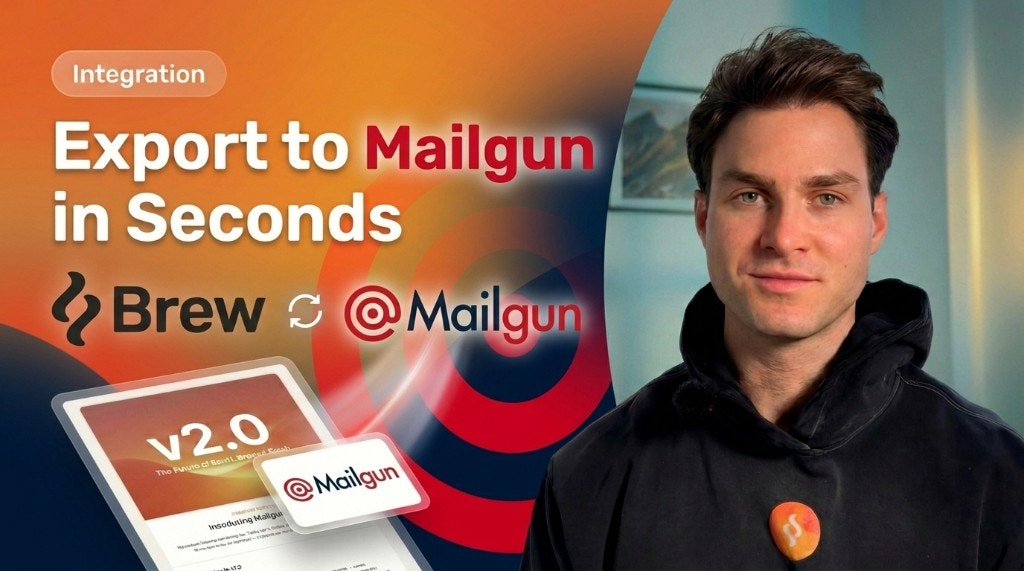
Connect your Mailgun account to export email templates created in Brew directly to your Mailgun domain. No manual copy-pasting, just design in Brew and export to Mailgun in one click.
 ## Setup
In Brew, go to **Integrations** and click the **Mailgun** card.
In Mailgun, go to **Sending → Domain Settings**. Copy your domain name and paste it into the first field in Brew.
Click your **profile icon** in the top right corner, then go to **API Security**. Click the **eye icon** next to your Private API Key to reveal it, then copy it.
Go back to Brew, paste the API key into the second field, and click **Connect**.
That's it. Mailgun is now connected to Brew.
## Exporting a Template
Once connected, you can export any email to Mailgun:
1. Open an email you've created in Brew
2. Click **Send**
3. Choose to **export the template to Mailgun**
4. Give it a name and click **Export**
The template appears in Mailgun under **Send → Sending → Templates**, ready to use.
## Requirements
* A Mailgun account with a verified domain
* Your domain name (found under Sending → Domain Settings)
* Your Private API Key (found under Profile → API Security)
## Setup
In Brew, go to **Integrations** and click the **Mailgun** card.
In Mailgun, go to **Sending → Domain Settings**. Copy your domain name and paste it into the first field in Brew.
Click your **profile icon** in the top right corner, then go to **API Security**. Click the **eye icon** next to your Private API Key to reveal it, then copy it.
Go back to Brew, paste the API key into the second field, and click **Connect**.
That's it. Mailgun is now connected to Brew.
## Exporting a Template
Once connected, you can export any email to Mailgun:
1. Open an email you've created in Brew
2. Click **Send**
3. Choose to **export the template to Mailgun**
4. Give it a name and click **Export**
The template appears in Mailgun under **Send → Sending → Templates**, ready to use.
## Requirements
* A Mailgun account with a verified domain
* Your domain name (found under Sending → Domain Settings)
* Your Private API Key (found under Profile → API Security)