

July 2026 · Available on all plans.
Historical note · July 2026 · Describes Brew as of July 2026. For current
behavior, see Preview in Real Inboxes.
What Shipped
Brew can now render any design across real email clients and devices (Gmail, Outlook, Apple Mail, iOS with dark-mode variants, and Yahoo). It returns a screenshot per client. Catch a broken Outlook table or a dark-mode contrast issue before the send goes out.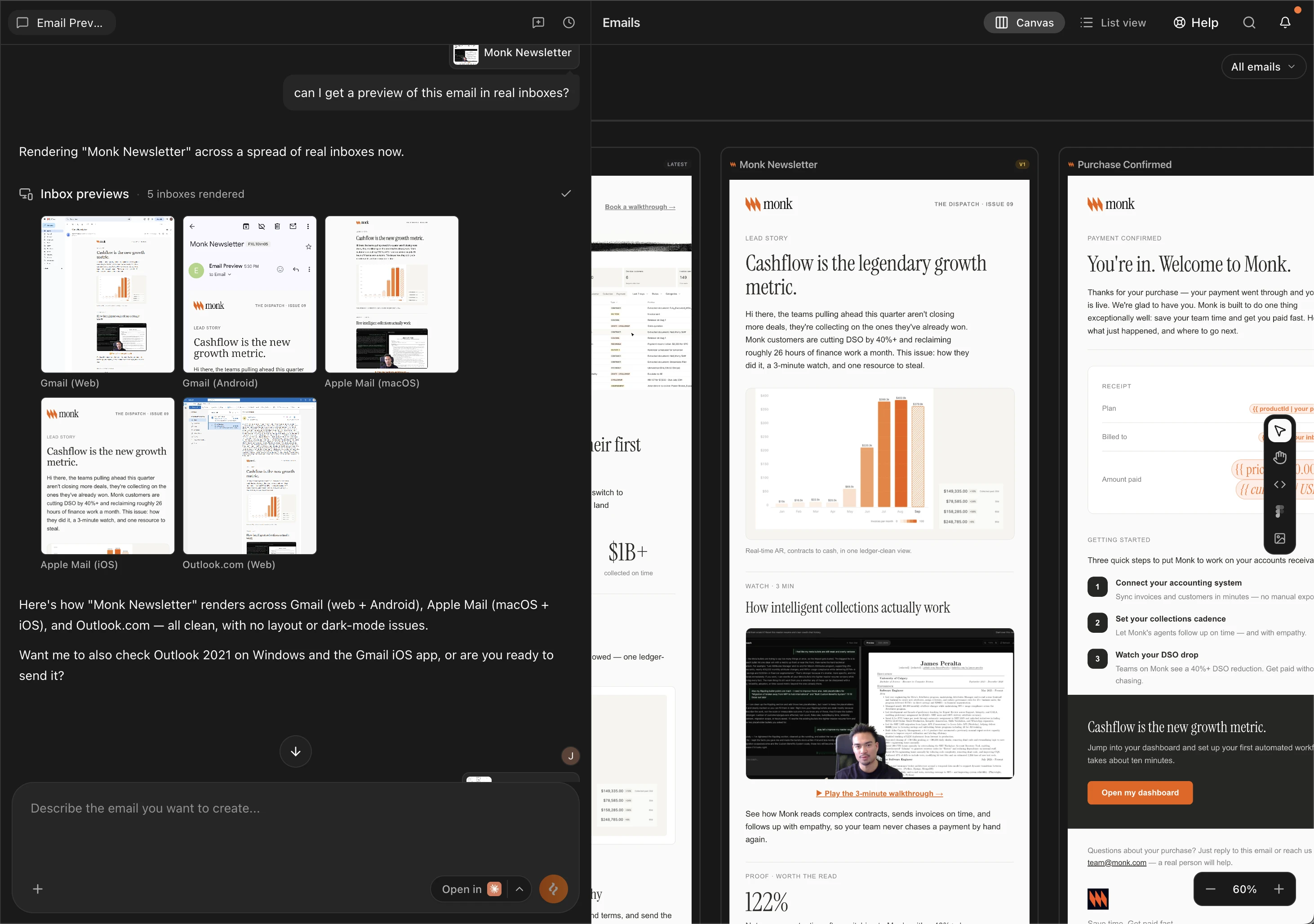
How to Use It
1
Add the email to chat
Open the email you want to check and click Add to chat. This brings
that design into the conversation so the preview runs against it.
2
Ask for a preview
Prompt the chat for a preview. Name specific inboxes if you have them in
mind:
“Preview this across real inboxes.”
“Preview this in Gmail mobile and Apple Mail dark mode.”Leave it open-ended and Brew runs a default spread of Gmail, Outlook, Apple Mail, and iOS.
3
Open the full renders
Preview images come back per client in the chat. Click any of them to
open the full-size render in a new tab. Slow clients show as Pending;
ask again to fetch just those.
From MCP
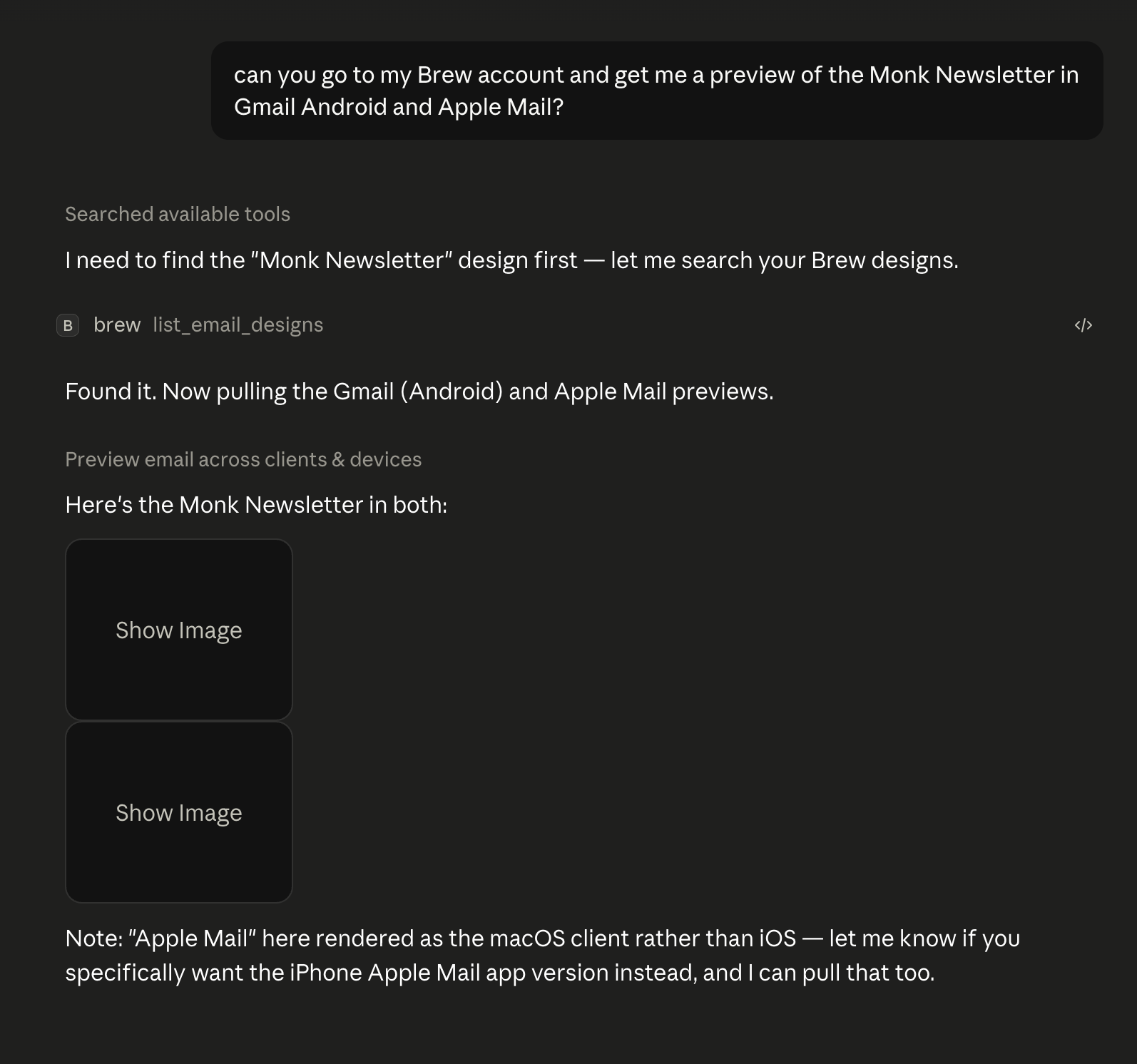
If Brew is connected to your AI client, previews run from any chat. Reference the email you want checked and ask:“Preview the launch email in Apple Mail and Gmail.”The agent calls
preview_email_across_clients and replies with the preview
images, hosted on Brew’s CDN. Click any of them to open the full-size render
in your browser.
From the API
The same feature is available atPOST /v1/emails/{emailId}/client-previews
and as brew.emails.previewClients(...) in the TypeScript SDK. See the
API Reference for the full client
catalogue.