

How It Works
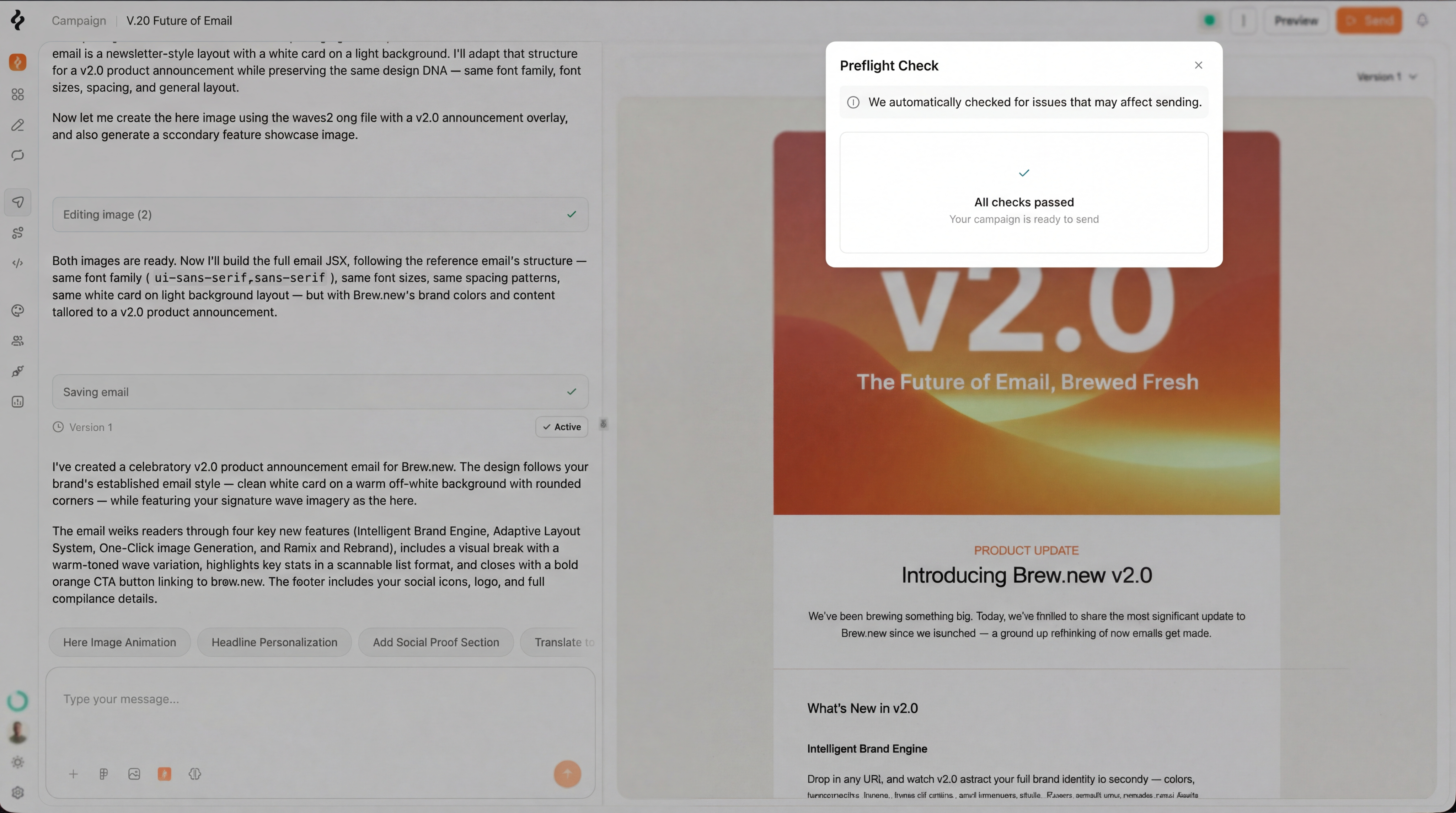
After you create or edit an email, Brew runs a series of checks against the content. Results appear as a status indicator in the editor. Click it to see the full breakdown. You don’t need to trigger this manually - it runs automatically.Issue Severity
Preflight checks surface issues at three levels:Blocking
Blocking
Issues that must be fixed before sending. Brew won’t let you send an email with blocking issues.Examples:
- Missing unsubscribe link
- Undefined merge variables
- Empty email body
Warning
Warning
Issues that won’t block sending but could hurt performance or deliverability.Examples:
- Broken or suspicious links
- Missing preheader text
- Unusually large email size
Recommendation
Recommendation
Suggestions to improve your email quality. These are optional but worth reviewing.Examples:
- Weak subject line
- Missing image alt text
- Low text-to-image ratio
What Gets Checked
Preflight checks cover:- Content - subject line quality, preheader text, body content, merge variable validity
- Links - every link is checked for reachability, security, and reputation
- Compliance - unsubscribe link presence, CAN-SPAM requirements
- Deliverability - email size, text-to-image ratio, spam trigger patterns
- Accessibility - image alt text, color contrast suggestions
Fixing Issues
Click on any issue in the preflight panel to see details and suggested fixes. For most issues, you can ask Brew’s AI to fix it directly - just click the fix button and the AI will update the email content. Blocking issues show a clear explanation of what’s wrong and what needs to change. Once all blocking issues are resolved, the send button becomes available.Preflight checks run on every version of your email. If you make changes after fixing an issue, the checks run again to confirm everything is still good.
Need Help?
Our team is ready to support you at every step of your journey with Brew. Choose the option that works best for you:- Self-Service Tools
- Talk to Our Team
Search Documentation
Type in the “Ask any question” search bar at the top left to instantly find relevant documentation pages.
ChatGPT/Claude Integration
Click “Open in ChatGPT” at the top right of any page to analyze documentation with ChatGPT or Claude for deeper insights.