

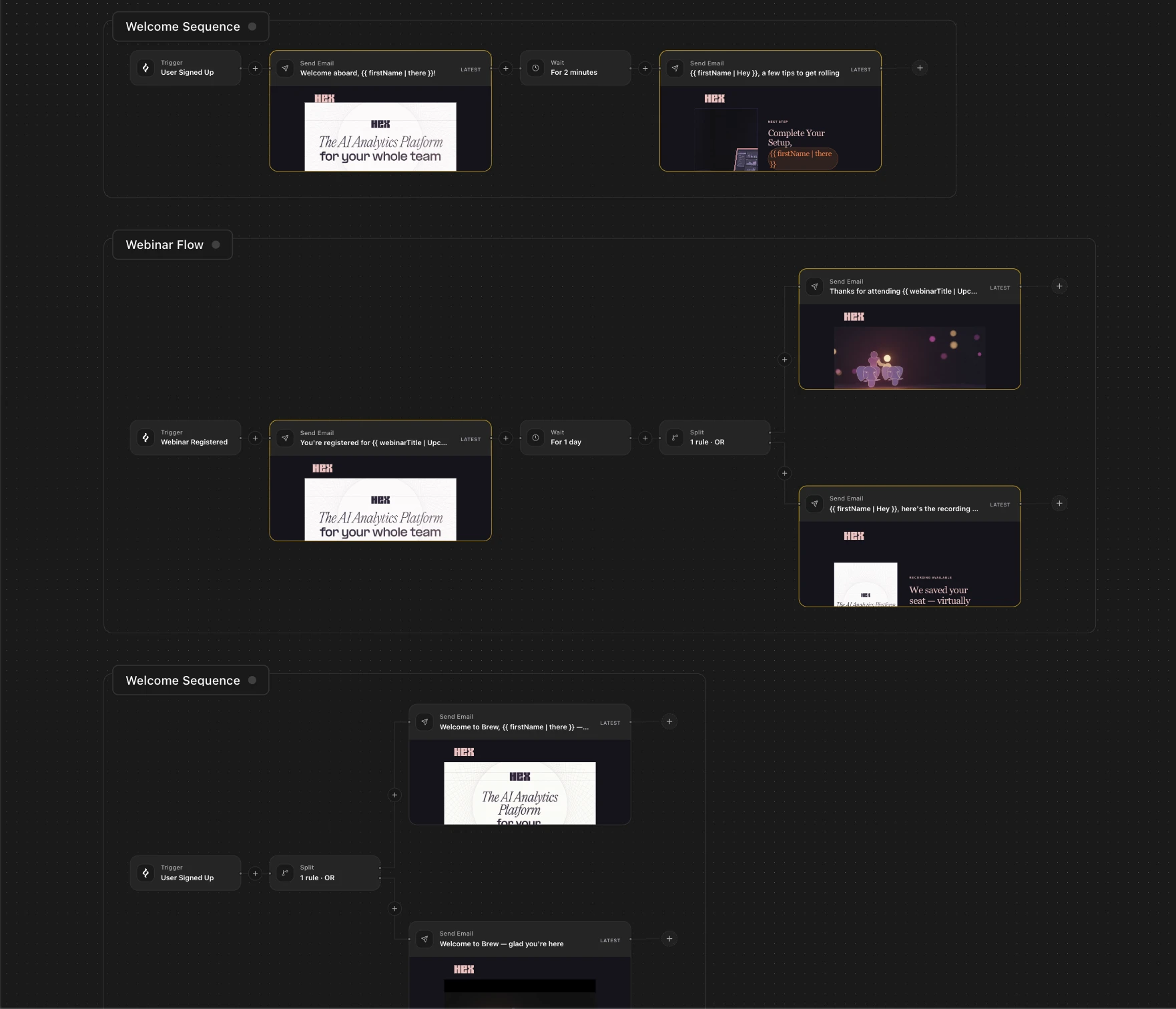
 Automations are emails Brew sends in response to events in your business, such as a signup, purchase, or payment failure. This page is the reference for the automation builder and the data it uses.
For the difference between one-off Emails and Automations, see Emails vs Automations. To create and publish a flow, follow Build an Automation.
Automations are emails Brew sends in response to events in your business, such as a signup, purchase, or payment failure. This page is the reference for the automation builder and the data it uses.
For the difference between one-off Emails and Automations, see Emails vs Automations. To create and publish a flow, follow Build an Automation.
The Automations List
The Automations list shows every automation with its status and trigger, plus counts for total, live, and draft flows. Search automations, manage trigger events with Triggers, or start a flow with New automation. Click an automation to open its dedicated canvas. The canvas always shows the flow selected from the list. Here the container is the automation itself, the same list-then-canvas pattern Emails use with groups; see Canvases.The Four Node Types
Every flow has a trigger and four node types. Send Email. Sends an email to the contact moving through the flow. The node can generate a new email or reference an email design from another flow. Each contact that reaches a Send Email node produces one send with its own delivery and engagement events. Those sends appear in analytics alongside one-off sends. Personalize with contact properties such as{{ firstName }} or trigger values such as {{ orderId }}.
Wait. Pauses the flow before the next node. Choose a preset duration, such as 1 hour, 1 day, 3 days, or 1 week, or enter a custom value.
Filter. Continues a contact only when a condition matches. Conditions can use contact properties, behavior such as opening a previous email, or trigger payload data.
Split. Creates two filtered paths so contacts receive different experiences, often based on whether they clicked an earlier email.
Emails Used in an Automation
An email in the email canvas can be the email a Send Email node sends. When it is, Brew marks it in the canvas: the email’s header shows a small automation icon in the top right corner, with a count of how many automations use it. Click the icon to see which ones. The popup lists each automation that sends this email, with its state (Draft or Live) and the email version that automation is pinned to. Select a row to open that automation’s canvas. The icon appears for draft and published automations alike, so an email can be linked before the flow ever goes live.Triggers
Every automation has a trigger. The trigger picker offers connected-source events, custom HTTP triggers, and manual audiences. Common trigger moments include new user signup, order placed, trial ending, payment failed, cart abandoned, and subscription canceled.Changing the Trigger
Click the trigger node to open its config panel. Use Change trigger to select another audience or event without rebuilding the rest of the flow.Manual Audience
A manual-audience automation runs a saved audience through the graph on demand. Its trigger shows the audience, filter query, and contact count. Runs show Sending while in flight and Sent when complete. Manual-audience automations are one-off flows. Choose Run now, Schedule, or Gradual send when launching one. See Send Options for details. The API and MCP also support manual-audience runs, including dry-runs.Lifecycle States
Each save or edit creates a version, shown in the canvas header as a version chip such as
v4. Unpublishing keeps history and returns a live flow to Draft. Archiving stops a flow you no longer need.
Personalization
Use merge tags in email content to pull in contact or trigger data:
Merge Tags owns the full syntax, the fallback form, and the rules for what resolves.
Trigger Events
Trigger events are signals that start automations.- Custom HTTP triggers. Events you define and fire from your backend.
- Built-in events. Discovered from connected sources such as Stripe billing events.
Custom Events
A custom event is one you define and fire from your own backend. It has a name and a payload schema, and Brew validates every fire against that schema before starting any automation. Names describe the action:user_signup, order_placed, subscription_renewed. Avoid event1, trigger, do_thing.
Schemas list the fields the event sends, each typed as string, int, boolean, or object, with required fields marked. A flat payload keeps merge tags short:
{{ user.email }} and {{ order.id }}:
POST /v1/automations/triggers/{triggerEventId}/fire; the API Reference has the contract. Build an Automation walks through creating, wiring, and testing one.
Connected-source Events
Connecting a provider provisions its full event catalogue. Each connection mints a webhook URL scoped to your brand, which you paste into the provider’s dashboard. Brew signature-verifies every delivery and rejects tampered or replayed events before anything runs. For every verified event, Brew starts each Live automation whose trigger matches and upserts the contact into your audience with provider-namespaced custom fields (stripe_subscription_status, clerk_user_id, and so on) you can use in filters and merge tags. The integration’s Manage tab shows the catalogue and a Recent events stream.
An event fires emails only when a Live automation is wired to it. Unpublish the automation to stop its sends, or disconnect the integration to stop every event.
See the Integrations overview for the full list. Brew only listens to connected sources. It does not charge customers, modify subscriptions, refund payments, mutate auth records, or change Shopify orders.
Stripe Events
Brew supports 22 Stripe events across checkout, customer, subscription, invoice, quote, and payment. See the Stripe integration page for the full event list.What Happens When a Payload Fails Validation
If an event is missing a required field or has a wrong type, Brew returns a400 INVALID_PAYLOAD error and does not start the automation:
Need Help?
Our team is ready to support you at every step of your journey with Brew. Choose the option that works best for you:- Self-Service Tools
- Talk to Our Team
Search Documentation
Type in the “Ask any question” search bar at the top left to instantly find relevant documentation pages.
ChatGPT/Claude Integration
Click “Open in ChatGPT” at the top right of any page to explore it further with ChatGPT or Claude.