

 Emails in Brew are one-off sends: newsletters, product announcements, promotions, event invites. This page is the reference for the Emails library and the canvases it opens.
For the difference between one-off Emails and Automations, see Emails vs Automations. To create, edit, test, and send an email, follow Create and Send an Email.
Emails in Brew are one-off sends: newsletters, product announcements, promotions, event invites. This page is the reference for the Emails library and the canvases it opens.
For the difference between one-off Emails and Automations, see Emails vs Automations. To create, edit, test, and send an email, follow Create and Send an Email.
Groups and Canvases
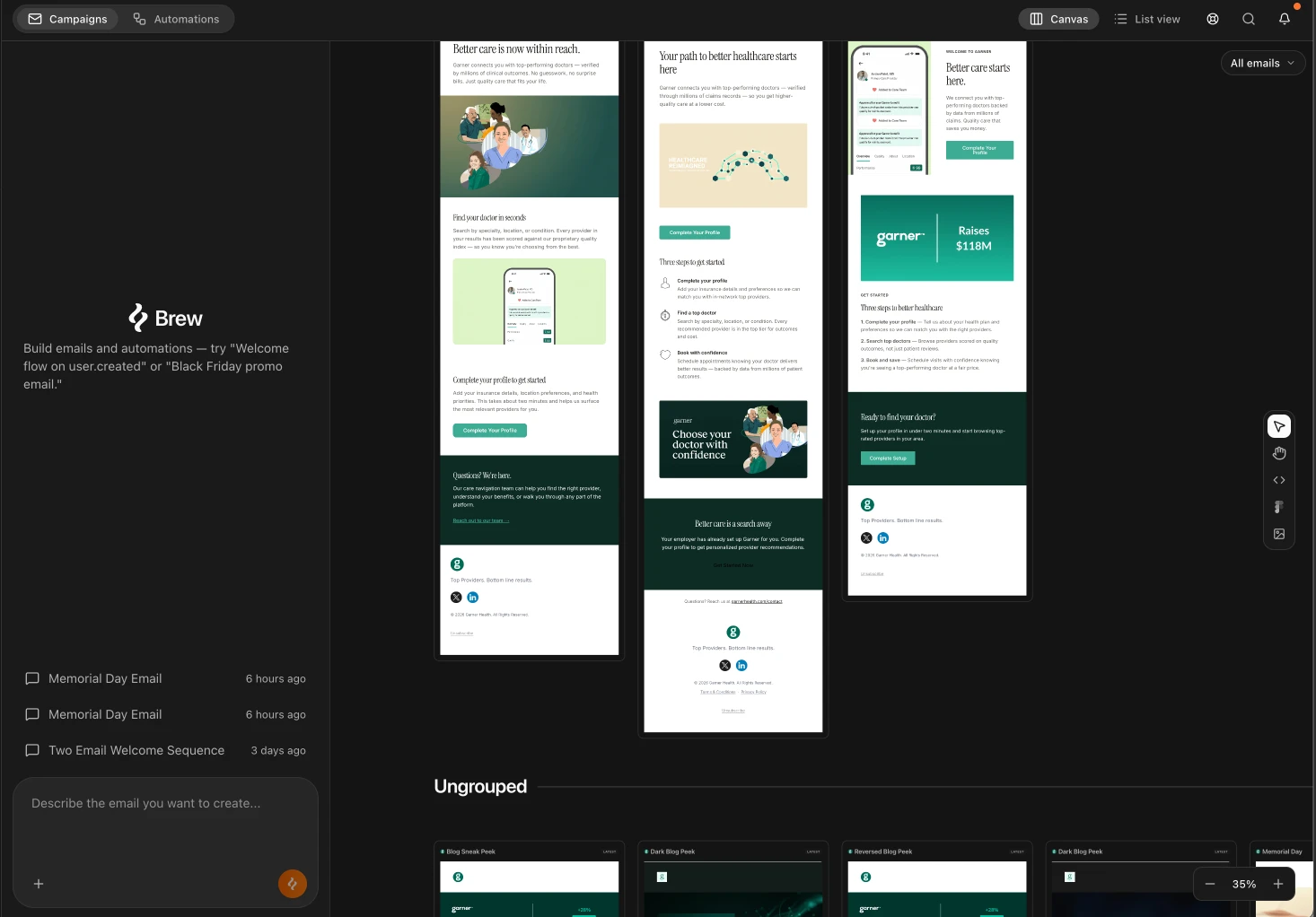
Open Emails in the sidebar and Brew shows every group in your account. Each group is its own canvas. Emails generated inside a group live on that group’s canvas and nowhere else. The emails you are comparing are always the ones you put together on purpose. Think of it as a folder structure. A group is a folder, its canvas is what you see when you open the folder, and every email sits in exactly one of them.- Ungrouped is the default. New emails land here unless you create them inside a group or move them into one. It is a canvas like any other, just the one you did not have to name.
- New canvas creates a group. Name it by campaign, season, or product line, then generate or drag emails into it. Deleting a group moves its emails to Ungrouped.
- Each group card shows a thumbnail stack of its emails, who last edited it, and when.
- See several designs side by side: when one prompt produces multiple emails, they appear next to each other on the same row
- Click into any email to edit it
- Resize, clone, or delete any email from the toolbar
- Switch between versions: every AI edit creates a new version, and the version dropdown lets you preview earlier ones
- Import designs from Figma, HTML, or images
Groups View vs List View
A toggle at the top of the Emails page switches between two views of the same groups:- Groups view. One card per group. Best for choosing which canvas to open and for seeing at a glance what each group holds.
- List view. Every email in a compact table, sectioned by group with each section collapsible. Best for scanning a larger library, and the clearest picture of which email belongs where. Drag an email from one section to another to move it between groups.
Groups from an Agent or Code
An agent can organize the library too. None of these tools changes a design’s content:
Ungrouped can’t be deleted. A copy lands in the same group as its source unless you name another.
Versions and Variants
Every AI edit creates a new version, and so does a restore. Manual edits autosave into the current version. They don’t create a new one. The version dropdown on the canvas lets you preview earlier versions, and from an agent,restore_email_version restores one as the new latest version.
A variant is a separate email on the canvas, so the original stays untouched. Edit the Email covers how each kind of edit affects a published automation, and Create Variants has example prompts.
Exporting to Another ESP
To send an email to your own audience, or to send yourself a test first, follow Send the Email. Export hands the design to another ESP instead. If you use HubSpot, Klaviyo, Mailchimp, or another ESP, click Send in the top right and choose Export template. Every ESP you have already connected appears as a destination, so connect the integration first. See Integrations for the full list of supported platforms and how to connect one. From an agent,export_email over MCP exports to a connected ESP. Export is free, and dryRun: true checks the design and the connection without creating the template.
Importing Existing Designs
Already have email designs? Bring them into Brew from the import tools in the toolbar on the right side of the canvas:
Import email takes a file or pasted source:
- Files.
.html,.mjml,.eml, or a React Email.jsxor.tsxfile, up to 5 MB. Your browser reads the file. It’s never uploaded. - Title. Optional. Leave it empty and Brew detects one from the source. An
.emlmessage’s subject becomes the title. - Cost. Import is free. It’s a straight conversion with no AI, so the same source always imports the same way.
.eml, Brew imports the HTML body and its inline images, and drops other attachments.
You can also forward emails to hello@email.brew.new. Forwarded emails land in Templates → Forwarded and can be remixed into your brand.
From an Agent or Code
The MCP tools on this page and in Create and Send an Email map to these endpoints:
The library endpoints are in the table under Groups and Canvases.
Related
Need Help?
Our team is ready to support you at every step of your journey with Brew. Choose the option that works best for you:- Self-Service Tools
- Talk to Our Team
Search Documentation
Type in the “Ask any question” search bar at the top left to instantly find relevant documentation pages.
Ask ChatGPT or Claude
Click here to open the Copy page menu at the top of this page, then send the page to ChatGPT, Claude, or your editor.